
Loading & Saving
SpicePad allows you to save your circuits as files and reload them later. You can also export circuit netlists for use with external SPICE simulators.
File Buttons

The toolbar includes three file management buttons:
- New — Clear the current circuit and start fresh.
- Open — Load a previously saved circuit file.
- Save — Save the current circuit to your computer.
- Netlist — View and download the SPICE netlist for the current circuit.
Loading Saved Circuits
Click the Open button in the toolbar to select a saved circuit file from your computer. SpicePad circuit files are saved in JSON format with a .json extension.
When you open a file, SpicePad will:
- Clear the current canvas (you will be prompted to save if there are unsaved changes).
- Load all components, wires, text annotations, and probes from the file.
- Restore the canvas viewport (zoom level and pan position).
After loading, your circuit is ready to edit or simulate. All wire connections, component values, and custom models are preserved exactly as they were when saved.
Saving Circuits
Click the Save button to download the current circuit as a JSON file. The file contains the complete circuit state, including:
- All components with their positions, designators, values, and SPICE models
- Wire routing and connections
- Text annotations
- Probe placements
- Viewport state (zoom and pan)
Browser Differences
The save behavior differs slightly between browsers:
Chrome / Edge / Safari
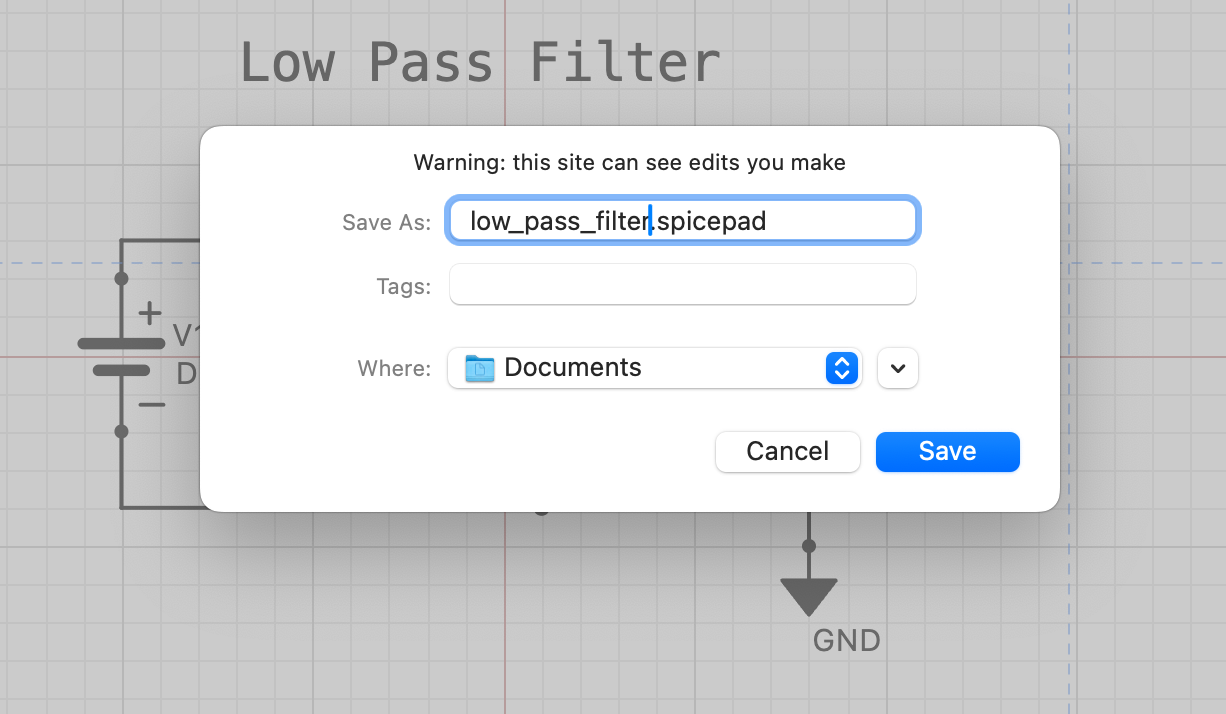
Chromium-based browsers and Safari show the native file picker, allowing you to choose the save location and filename before downloading. This gives you full control over where the file is saved.
Firefox
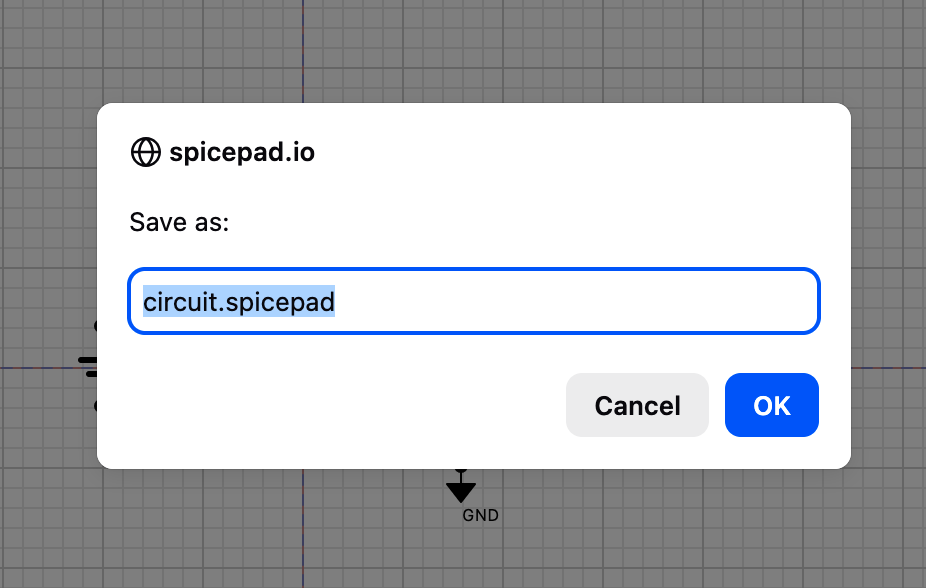
Firefox uses a simpler download prompt. The file is saved to your default Downloads folder with an auto-generated filename (e.g., circuit_2026-04-07.json). You can rename and move the file after download if needed.
Viewing & Saving Netlists
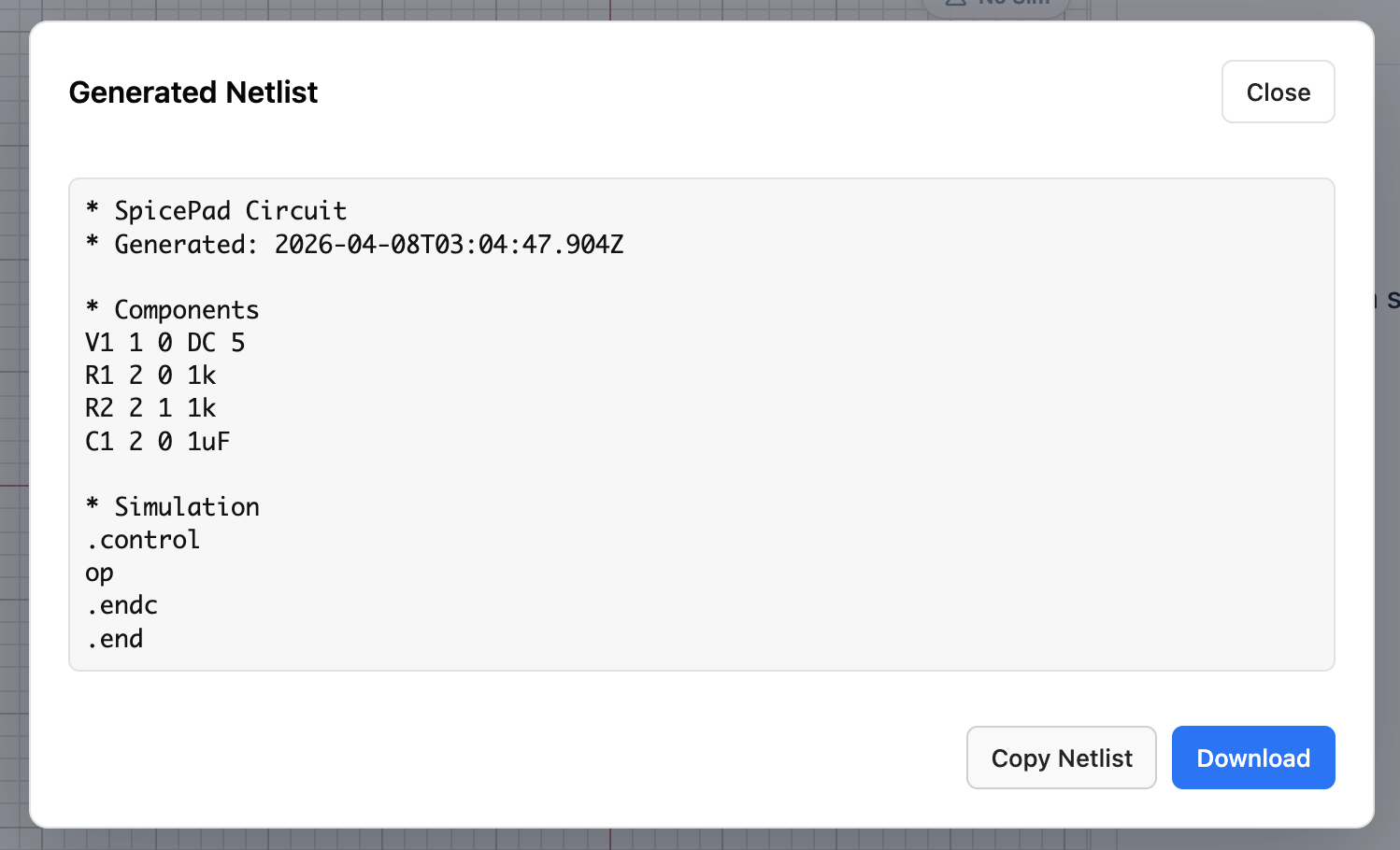
Click the Netlist button in the toolbar to view the SPICE netlist generated from your circuit. The netlist viewer shows the raw SPICE code that will be used for simulation, including:
- Component definitions (netlisted from the schematic)
- Subcircuit expansions
- Model definitions
- Simulation control directives
The netlist is generated automatically based on the current circuit. Click Download Netlist at the bottom of the viewer to save it as a .cir file for use with external SPICE simulators like ngspice, LTspice, or HSPICE.
If the netlist generator encounters problems (such as disconnected components or duplicate designators), errors will be displayed at the top of the netlist viewer.
Auto-Save & Recovery
SpicePad automatically saves your work to browser storage as you edit. If your browser crashes or you accidentally close the tab, your most recent work can usually be recovered by reopening SpicePad.
Note: Browser storage is local to your device and can be cleared if you clear browser data. For important circuits, always use the Save button to create a permanent file backup.
Tips
- Use descriptive filenames when saving circuits (e.g.,
amplifier_v2.jsoninstead ofcircuit.json). - Save frequently, especially before major changes or simulations.
- Keep backups of important circuits outside your Downloads folder.
- The netlist viewer is useful for debugging connectivity issues — check it if simulation results seem unexpected.